On this page
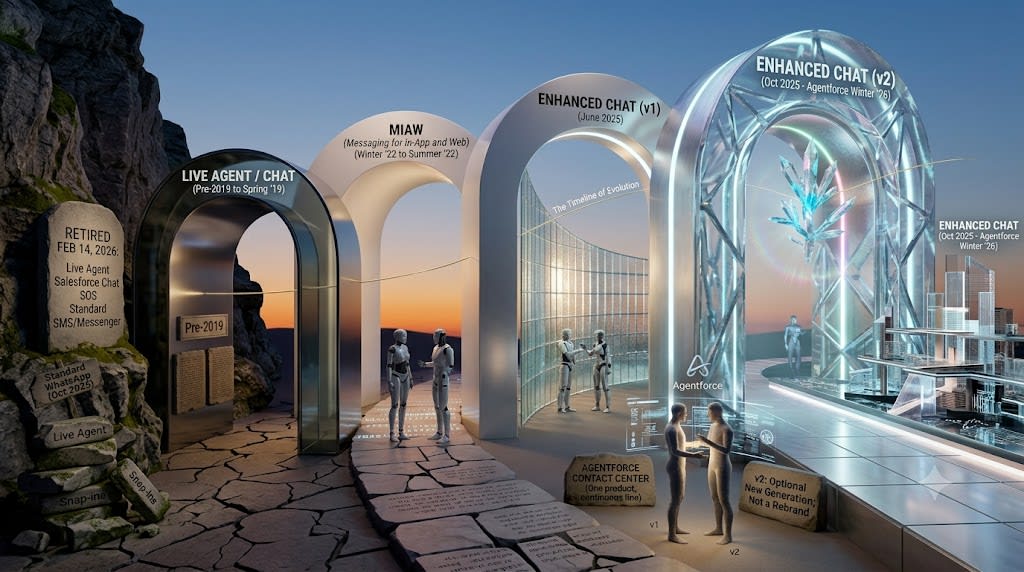
1. 🕰️ One product, four names — and a rename that's easy to misread#
Here's a claim you'll run into on a client engagement: "Enhanced Chat" means v2 — v1 is really still called MIAW, or even "Legacy Chat." It sounds plausible. It's also wrong, and worth killing precisely because it's plausible enough to survive in a project chat unchallenged.
The actual timeline makes the claim impossible. Salesforce renamed MIAW to Enhanced Chat in June 2025. Enhanced Chat v2 didn't exist until October 2025, as part of the Agentforce Winter '26 wave. Salesforce could not have coined "Enhanced Chat" as a synonym for v2 four months before v2 shipped. The name was applied to the whole product line; v2 arrived later as a second client generation within that already-renamed product.
Untangling this matters beyond pedantry, because MIAW isn't a green-field product — it's the fourth name on one evolving lineage, and every predecessor left artifacts behind (Live Agent buttons, Snap-ins deployments, Embedded Service SDKs) that still turn up in mature orgs.
| Era | Name | Timeframe | What it was |
|---|---|---|---|
| 1 | Live Agent | Pre-2019 | The original synchronous web-chat product. Console-based agent UI, raw JS snippet for customers. Session-based only — chat ends when the window closes. |
| 1b | Chat (rebrand of Live Agent) | Spring '19 (release 220) | Same product, renamed. This is what Salesforce now calls Legacy Chat. |
| 2 | SOS | Unveiled Dreamforce 2014; GA ~Spring '15 | Mobile in-app video support — originally one-way agent-to-customer video plus screen share; two-way video arrived later, with Snap-ins in 2016. Never supported Lightning Experience. Now retired. |
| 2b | Snap-ins → Embedded Service | Snap-ins launched May 2016; renamed Embedded Service in Spring '19 | The packaging layer that let you drag-and-drop Chat (plus Case forms, Knowledge, SOS) onto a site or Community as a widget instead of hand-coding JS. |
| 3 | Messaging for In-App and Web (MIAW) | First release notes Winter '22; GA Summer '22 | A ground-up rebuild on Hyperforce: asynchronous, persistent, multi-device conversations instead of session-based chat, built to also carry AI bot/agent traffic. Introduced the shared Conversation Platform architecture. |
| 4 | Enhanced Chat (rename of MIAW) | June 2025 → | Renamed for branding consistency with Enhanced Messaging (WhatsApp), Enhanced SMS, etc. Same product line — both names still appear in docs. |
| 4b | Enhanced Chat v2 | Agentforce Winter '26 wave, available Oct 24, 2025 | A new client generation alongside v1, not a rename. Optional, off by default. |
Legacy Chat has already been retired — February 14, 2026. That date held; it's history now, not a deadline. The retirement swept up the whole legacy family: LiveAgent, Salesforce Chat, Embedded Chat, and Service Chat. Two adjacent retirements are worth knowing when auditing a client org: Standard WhatsApp (retired October 22, 2025) and Standard Facebook Messenger / Standard SMS (retired the same day as Legacy Chat). If any of these still show up in an org's metadata, they're dead configuration — Enhanced Chat is the only forward path, and Salesforce Help now files everything under the Agentforce Contact Center documentation umbrella.
From here on, this article follows Salesforce's own lead: "Enhanced Chat" first, "MIAW" as the parenthetical — one product with a mid-life rebrand, not two products.
2. ✅ The three terms, kept straight#
The evidence against the "Enhanced Chat = v2" mix-up stacks up beyond the timeline alone. Salesforce's own comparison article is titled Compare Enhanced Chat v1 to Enhanced Chat v2 — v1 is called "Enhanced Chat v1," never "Legacy Chat" or "MIAW" in isolation. Salesforce's migration guidance is equally explicit: MIAW was introduced in Summer '22 and renamed Enhanced Chat in June 2025 — full stop, no version qualifier. And "Legacy Chat" is reserved, officially, for one thing only: the pre-MIAW family retired February 14, 2026.
| Term | What it actually refers to | Status |
|---|---|---|
| Legacy Chat (proper noun) | The pre-MIAW family: Live Agent, Salesforce Chat, Embedded Chat, Service Chat | Retired Feb 14, 2026 |
| Enhanced Chat v1 | The original MIAW, renamed June 2025 | Current, still the default |
| Enhanced Chat v2 | The newer client generation added Oct 2025 | Current, optional |
The likely source of the confusion: third-party blogs sometimes use "legacy chat implementation," lowercase, as an informal adjective meaning your existing v1 build — in contrast to a newer v2 build. That's a casual phrase, not the official retired product name, but it's an easy one to misread as a reference to Legacy Chat. It isn't one. And "IAW" (In-App and Web) has described the product's dual web-plus-in-app scope since 2022 — it was never v2-exclusive branding either.
3. 🔁 What actually changed from Legacy Chat#
Three shifts separate Enhanced Chat from everything that came before it, and they're structural, not cosmetic:
Session-based → asynchronous and persistent. Legacy Chat conversations died when the browser tab closed. Enhanced Chat conversations persist — a customer can close the tab, return tomorrow, switch devices, and pick up where they left off.
Human-agent-only → AI-native. Enhanced Chat routes to an Agentforce Service Agent or an "enhanced bot" as a first-class routing destination. Legacy Chat supported standard bots only and could not be used with AI agents at all.
Fixed widget → SDK-based and configurable. For in-app, Enhanced Chat ships two SDK layers per platform: a ready-made-but-configurable UI SDK, and a Core App SDK for building your own UI from scratch. Legacy Chat's Embedded Service SDK offered one or the other, not both cleanly separated.
| Capability | Legacy Chat | Enhanced Chat |
|---|---|---|
| Conversation lifecycle | Session-based, ends on disconnect | Asynchronous, persistent, cross-device |
| AI agent support | Standard bots only, no AI agents | Agentforce Service Agent + enhanced bots |
| Object linking | Channel-Object Linking | Individual-Object Linking via Flow (per-session) |
| Structured content | None | Messaging Components (links, questions, secure forms, time selectors) |
| Conversation intelligence | Not available | Real-time flagged-keyword alerts to reps/supervisors |
| Routing | Basic Omni-Channel routing | Flow-based routing, can route straight to a rep |
| Wait time / read receipts | Not standard | Estimated Wait Time, read & delivery receipts |
| File attachments (rep → customer) | Not supported | Supported |
| Customer emoji, message search | No | Yes |
| Experience Cloud embedding | Snap-ins component, limited LWR support | Native LWR support across multiple templates |
| Editor requirement | Classic or Lightning | Lightning Experience required |
Treat that table with one caveat: it's written at the whole-product level, and it predates v2. Two things follow from that.
First, it isn't literal 100% parity even at the whole-product level. Salesforce's own Alternative Solutions article lists real gaps: Queue Position has no direct port (Estimated Wait Time is conceptually similar but a different UI), IP Blocking has no native equivalent (build it with a custom object plus an Omni-Channel Flow check), and Sneak Peek — the rep seeing what the customer is typing before they hit send — is a confirmed Legacy-only gap with no alternative offered at all. Invitations are murkier: that same article says no native equivalent exists, but Salesforce's current Help table of contents also lists a native automated-invitation setup article under Enhanced Chat — likely the Alternative Solutions page hasn't caught up. Verify in your own org before promising either way.
Second, if you read the parity claim as a promise about v2 specifically, it currently overstates v2. Customer emoji is the clearest example: it's on the "now in Enhanced Chat" list, but it's v1-only per the v1/v2 comparison below. The parity claim holds cleanly for v1. For v2, cross-check anything you're relying on against the matrix in the next section first.
4. 🔀 The v1/v2 split you'll hit in setup#
v1 is still the default. An admin has to explicitly opt into v2 — the quick-start wizard surfaces a "Switch to v2" button after channel creation, and Salesforce is explicit that moving is optional. This is a real architectural decision, not a "pick the latest" default, though the gap has narrowed considerably since v2's October 2025 launch, and several items widely believed to be v1-only are now in v2.
What v2 adds that v1 doesn't have: Custom Lightning Types (render custom LWCs inside the conversation), Agentforce Voice support, the Context Events API, Inline Mode (embed the conversation in the page layout instead of a floating launcher), and a more modern Agentforce-style UI with multimodal support and token streaming.
What's genuinely still v1-only: typing indicators, the emoji keyboard, Enter/Return key customization, custom LWC components inside the message bubble specifically (pre-chat form and header LWCs are in v2), the Time Selector / Form / Notification messaging components, opt-out keyword handling and confirmation, a fallback message, and pre-chat display frequency set to "every session."
Commonly mis-listed as v1-only, but actually in v2: custom chat window dimensions (v2 supports colors, fonts, images, and dimensions), chat invitations — both standard and contextual, test chat simulation, custom LWC components in the pre-chat form and header, and the Auto-Responses, Launch Chat, Send Message, and Show/Hide Chat Button APIs.
| Area | v1 | v2 |
|---|---|---|
| Custom Lightning Types | ✗ | ✓ |
| Agentforce Voice support | ✗ | ✓ |
| Inline Mode | ✗ | ✓ |
| Context Events API | ✗ | ✓ |
| Typing indicators | ✓ | ✗ |
| Emoji keyboard | ✓ | ✗ |
| Enter/Return customization | ✓ | ✗ |
| Custom LWC — pre-chat form & header | ✓ | ✓ |
| Custom LWC — message bubble | ✓ | ✗ |
| Branding: colors / fonts / images / dimensions | ✓ | ✓ |
| Chat invitations (standard + contextual) | ✓ | ✓ |
| Test Chat simulation | ✓ | ✓ |
| Time Selector / Form / Notification components | ✓ | ✗ |
| Opt-out keywords & confirmation | ✓ | ✗ |
| Fallback message | ✓ | ✗ |
| Pre-chat display frequency: every session | ✓ | ✗ |
| Launch Chat / Send Message / Auto-Responses / Show-Hide APIs | ✓ | ✓ |
Default to v2 unless a specific v1-exclusive feature is a hard requirement. v2 is unambiguously where Salesforce is investing — recent releases have shipped deeper v2-specific customization and deployment tooling. Choose v1 only if the build genuinely needs typing indicators, the emoji keyboard, Enter/Return customization, message-bubble LWCs, the Time Selector / Form / Notification components, opt-out keyword handling, a fallback message, or per-session pre-chat display.
Re-check this matrix every release — Salesforce ships three a year, and the gap is actively closing. Anything listed as v1-only above may have moved by the time you're reading it.
5. 🧩 The pieces that matter once you're building#
A handful of terms carry the setup walkthrough below, and two of them collide in a way that trips people up:
Messaging Channel — the specific channel instantiation (Enhanced Web Chat, Enhanced In-App Chat, WhatsApp, etc.) with its own developer name, domain, and routing config.
Service Channel — not a Messaging term. This is the standard Omni-Channel setup object that maps a Salesforce object (here, Messaging Session) to something routable. Different layer, different Setup page — don't conflate it with Messaging Channel.
Embedded Service Deployment — the concrete instance of a channel bound to a site or domain. For Experience Cloud, this is what the Embedded Messaging component points to.
Messaging Session — the record for one conversation instance. This is what an Omni-Channel Flow routes, and what links to Case/Contact/Lead via Individual-Object Linking.
Omni-Channel Flow — the Flow Builder logic (a Route Work element) deciding Queue, Agent, Bot, Skill, or Agentforce Service Agent for an incoming Messaging Session.
Conversation Platform — the shared backend under Enhanced Chat, Salesforce Voice, Enhanced Messaging channels, and Bring-Your-Own-Channel. A feature shipped for this platform (a messaging component type, conversation intelligence, real-time translation) tends to show up across all these channels, not just chat.
6. 🛠️ Deploying on Experience Cloud, start to finish#
Also check whether the org is on Credits-Based Messaging before scoping — the consumption model shifts under that setting, covered in section 8.
The order below is the one that actually works. Building the deployment before the routing flow exists — or the flow before the queue it routes to — is the most common cause of a broken quick-start, because every later stage references something built in an earlier one:
flowchart TD
    A[Omni-Channel + Messaging + Digital Experiences enabled] --> B[Service Channel: Messaging Session]
    B --> C[Routing Configuration]
    C --> D[Queue, linked to the Routing Configuration]
    D --> E[Presence Status + Presence Configuration]
    E --> F[Omni-Channel Flow: references the Service Channel and Queue, then activated]
    F --> G[Messaging Channel + Deployment: references the Flow]
    G --> H[Embedded Messaging component: references the Deployment]
    H --> I[CORS entry, then Publish]
Stage 1 — Enable the foundations#
- Setup → Omni-Channel Settings → check Enable Omni-Channel → Save.
- Setup → Messaging Settings → enable Messaging, and accept the Terms & Conditions if prompted (a one-time, org-wide step).
- Setup → Digital Experiences → Settings → check Enable Digital Experiences.
- Enter a domain name, click Check Availability, then Save.
- Copy the full domain shown — for example
yourname-dev-ed.develop.my.site.com. The channel setup step and the CORS step both need it again.
Stage 2 — Build the Omni-Channel routing stack#
Omni-Channel isn't one setting underneath Enhanced Chat — it's five objects that chain together, and each one references the object built before it. Skip any one of them and work simply never reaches a rep, usually surfacing as "the session sits in the queue and nothing happens," with no error pointing at the actual cause.
Service Channel#
- Setup → Service Channels → New.
- Configure:
| Field | Value |
|---|---|
| Service Channel Name | Messaging |
| Salesforce Object | Messaging Session |
| Capacity Model | Status-Based |
- Save.
Status-Based is the better fit for messaging specifically — a session consumes capacity until it's closed, matching how async chat actually behaves, rather than the concurrent-call model built for synchronous work. Some orgs already auto-create a Messaging service channel when Messaging is enabled; use that one instead of creating a duplicate.
Routing Configuration#
- Setup → Routing Configurations → New.
- Configure:
| Field | Value | Why |
|---|---|---|
| Routing Configuration Name | Chat Routing Config |
<br /> |
| Routing Priority | 1 |
Lower number = higher priority — chat is real-time and should generally outrank email/case work |
| Routing Model | Least Active | Sends to the rep with the fewest open items ("Most Available" sends to the rep with the most spare capacity instead) |
| Units of Capacity | 1 |
One chat consumes one unit of a rep's capacity |
| Use with Skills-Based Routing Rules | Unchecked | See warning below |
- Save.
Queue#
- Setup → Queues → New.
- Label:
Chat Support Queue(the Queue Name auto-fills). - Routing Configuration: select
Chat Routing Config— this lookup is what makes the queue Omni-Channel-aware. - Under Supported Objects, move Messaging Session to Selected (add Case too if cases get created from chats later).
- Under Queue Members, add the test rep user.
- Save.
A queue without a Routing Configuration lookup is just an ordinary Salesforce queue — records land in it and sit there forever, with nothing actively pushing them out to a rep.
Presence Status#
- Setup → Presence Statuses → New.
- Status Name:
Available for Chat. - Status Options: Online.
- Under Service Channels, move the
Messagingchannel to Selected. - Save.
Presence Configuration#
Salesforce auto-creates a Default Presence Configuration the moment Omni-Channel is enabled, so this is usually a check, not a build.
- Setup → Presence Configurations → open Default Presence Configuration → Edit.
- Confirm Capacity is above zero (
5is a reasonable dev-org value). - Leave Automatically Accept Requests unchecked, so the Accept button stays visible and routing is easy to watch happen.
- Confirm the test rep user is in the Assigned Users list.
- Save.
Grant the presence status#
- Setup → Profiles → the rep's profile.
- Enabled Service Presence Status Access → Edit → add
Available for Chat→ Save. (A dedicated permission set with Service Presence Status Access works too.)
Stage 3 — Build the Omni-Channel Flow#
- Setup → Flows → New Flow → Omni-Channel Flow → Create.
- In the Toolbox, click New Resource, and create an input variable:
| Field | Value |
|---|---|
| Resource Type | Variable |
| API Name | recordId |
| Data Type | Text |
| Available for input | checked |
| Available for output | unchecked |
- Add a Route Work action:
| Field | Value |
|---|---|
| Label | Route to Chat Queue |
| Record ID | {!recordId} |
| Route To | Queue |
| Service Channel | the Messaging service channel from Stage 2 |
| Queue ID | Chat Support Queue |
- Save, label it (for example
Enhanced Chat Routing), then click Activate.
Stage 4 — Create the Messaging Channel and deployment#
- Setup → Messaging Settings → New Channel → Start.
- Channel Type: Enhanced Chat → Next.
- Name the channel:
| Field | Value |
|---|---|
| Channel Name | Experience Site Chat |
| Deployment Type | Enhanced Web Chat |
| Domain | the Experience site domain from Stage 1, entered without the https:// prefix — see warning below |
- Next.
- Configure Channel Routing:
| Field | Value |
|---|---|
| Routing Type | Omni-Flow |
| Flow Definition | Enhanced Chat Routing |
| Fallback Queue | Chat Support Queue |
(Agentforce Service Agent is the alternative Routing Type here — it skips the queue and routes straight to an AI agent. Stick with Omni-Flow for a first build, so the human-rep path is visibly working before AI gets added on top.)
- Accept Terms & Conditions → Save.
- Wait on the loading screen — don't navigate away. Provisioning takes a moment, and interrupting it leaves a half-created channel.
- On the success screen, click Customize to open Embedded Service Deployment Settings.
- The deployment is v1 by default. To move to v2: click Switch to V2 → Switch & Publish, wait, then refresh — the button now reads Switch to V1 once it worked. (See section 4 for when staying on v1 is the better call for a first build — typing indicators and the emoji keyboard make an early test visibly work.)
- On the same page, find the code snippet section and copy the
scrt2URL — for examplehttps://yourorg.my.salesforce-scrt.com. The Experience Builder step needs it as the Enhanced Service URL.
Stage 5 — Create the Experience site#
- Setup → Digital Experiences → All Sites → New.
- Choose a template — Build Your Own (LWR) is the cleanest starting point.
- Name the site, set a URL suffix, click Create.
- Wait for provisioning, then let it open Experience Builder.
- Settings (gear icon) → General → under Public Access, check Guest users can see and interact with the site, so chat can be tested as an anonymous visitor.
Stage 6 — Drop in the chat component#
Drag-and-drop is the only supported integration method on an Experience site — there's no manual code-snippet path the way there is on a plain external website. Supported templates are Build Your Own (Aura), Customer Account Portal, Partner Central, Help Center, Customer Service, Build Your Own (LWR), Microsite (LWR), plus the Commerce equivalents (B2B/B2C Commerce LWR, B2B Commerce Aura). LWR templates get the fullest support — prefer LWR on a greenfield build, and re-check current template support before a client build since it evolves.
- In Experience Builder, open the Components panel.
- Find Embedded Messaging.
- Drag it onto the footer region of the template, not a single page — the footer persists across every page the visitor navigates to, while a page-level placement disappears the moment they click through.
- Select the component and fill in the property editor:
| Property | Value |
|---|---|
| Embedded Web Deployment | Experience Site Chat (from Stage 4) |
| Enhanced Service URL | the scrt2 URL copied in Stage 4 |
| Site Endpoint | must match the Site Endpoint on the Embedded Service Deployment Settings page |
| Chat Button Visibility | Default (respects business hours) |
- Publish the site (top right) → confirm.
If Embedded Messaging isn't in the Components panel at all, it's almost always one of three causes: a leftover Embedded Service or Channel Menu component is still on the page and needs removing first (only one of the three can exist on a site at a time), the deployment isn't linked to this site's domain, or the template isn't one of the ones listed above.
Stage 7 — CORS#
Without this step, the widget renders but never connects, and the browser console fills with CORS errors instead of a clean failure.
- Setup → Digital Experiences → Settings → copy the domain URL.
- Setup → CORS → New.
- Paste the domain — including
https://this time, the opposite of how it went into the channel's Domain field back in Stage 4. - Save.
- Add
https://*.live-preview.salesforce-experience.comas a second entry if chat works on the published site but not inside Builder's own preview. - On v2, or when using Server-Sent Events features, work through the separate SSE network configuration requirements as well.
Stage 8 — Set up the rep side#
Add Omni-Channel to the console#
- Create a permission set granting Enhanced Chat service-rep access, and assign it to the test user.
- App Launcher → Service Console.
- Setup (gear icon) → Edit App (or App Manager → Service Console → Edit).
- Utility Items → Add Utility Item → Omni-Channel → Save.
Go online#
- Open Service Console.
- Click the Omni-Channel widget in the utility bar.
- Set status to
Available for Chat.
Stage 9 — Test end to end#
- Open the published site in an incognito window, at the site URL from Stage 5.
- Click the chat bubble (bottom-right) → send a message.
- Switch to the Service Console window — the request appears in the Omni-Channel widget — and click Accept.
- Reply. Confirm both sides see messages in real time.
- Verify persistence — this is the headline Enhanced Chat behavior covered in section 3, worth seeing rather than taking on faith: close the incognito tab mid-conversation, reopen the site, reopen chat. The history should still be there.
- Republish after every settings change. Caching means changes can take up to ten minutes to propagate, and some features simply don't take effect without a republish.
When it doesn't work#
A handful of failures don't announce their own cause clearly enough to guess at — worth checking directly rather than re-walking the whole stack:
| Symptom | Cause | Fix |
|---|---|---|
| No chat bubble on the site | Business-hours visibility, or site not republished | Set Chat Button Visibility to Always Visible; republish |
| Bubble appears, won't connect | CORS missing, or missing https:// |
Stage 7 — re-add with the protocol |
| Message sends, never reaches a rep | Flow inactive, or recordId misspelled |
Activate the flow; verify exact casing |
| Session sits in the queue, never pushes to a rep | Queue has no Routing Configuration lookup | Stage 2 — set the Routing Configuration lookup on the queue |
| Work routes but the rep never receives it | Presence Configuration capacity is 0, or the rep isn't in Assigned Users | Stage 2 |
| Flow routing behaves erratically | Use with Skills-Based Routing Rules is checked | Stage 2 — uncheck it on the Routing Configuration |
| Nothing in the Omni-Channel widget | Rep offline, not a queue member, or no presence access | Stage 2, Stage 8 |
| Flow list empty at Channel Routing | Flow not activated | Stage 3 |
| Messaging Session missing as a Queue-supported object | Messaging not enabled | Stage 1 |
| Works published, fails in Builder preview | Live-preview domain not in CORS | Stage 7 |
7. 🎈 Floating vs. inline — the one part that isn't drag-and-drop#
A natural follow-up question for an Experience Cloud build: do v1 and v2 both give you a ready-made widget, or does either need custom work? The honest answer splits by display mode, not by version.
| Display mode | Enhanced Chat v1 | Enhanced Chat v2 |
|---|---|---|
| Floating (launcher bubble, bottom-right) | Fully ready-to-use — drag Embedded Messaging onto the footer, point it at the deployment, publish. Zero code. | Identical steps. The property editor doesn't know or care whether the deployment behind it is v1 or v2. |
| Inline (embedded in the page layout) | Not available at all — Salesforce states Inline Mode is v2-only. | Available, but not drag-and-drop — there's no "Display Mode: Inline" field anywhere in the standard property editor. |
Inline Mode isn't a checkbox because Salesforce's developer docs configure it entirely through a JavaScript settings object:
embeddedservice_bootstrap.settings.displayMode = 'inline';
embeddedservice_bootstrap.settings.targetElement = document.querySelector('#chat-container');On an Experience Cloud site specifically, that means Inline Mode is build-once-then-reusable, not point-and-click. Create a small custom LWC that renders an empty container <div>. In its JS, initialize embeddedservice_bootstrap against that container with displayMode: 'inline'. In the component's js-meta.xml, expose it to the lightningCommunity__Page target so it becomes Builder-draggable. Deploy the LWC — from that point on, admins drag that custom component onto any page in Experience Builder exactly like a standard one.
So the widget always ends up drag-and-drop-able in Experience Builder either way; the question is only whether Salesforce already built that component (floating, both versions) or whether it gets built once, in-house (inline, v2 only). If a client needs the chat visually embedded in the page rather than floating, that alone is a reason to be on v2 — v1 has no equivalent path to inline placement.
A few adjacent limits worth flagging before scoping an Experience Cloud build: the Enhanced In-App Chat SDKs (iOS/Android) are for native mobile apps only, not Experience Cloud — an Experience site always uses Enhanced Web Chat instead. Only one of Embedded Service Chat, Channel Menu, or Enhanced Web Chat can live on a given site at a time. And pre-chat field values can be mapped into the Omni-Channel Flow and persisted across sessions for a Messaging User — genuinely useful on Experience Cloud, where the visitor may already be an authenticated portal user whose identity fields can be mapped in rather than re-asked.
8. 💳 Licensing, briefly#
Enhanced Chat sits under Service Cloud's Digital Engagement licensing, with the newer Agentforce Contact Center Digital add-on now also relevant — Salesforce's glossary defines the billing unit "Conversation" in relation to that add-on. Agentforce interactions layered on top are priced through Flex Credits, a flat per-conversation rate, or per-user Agentforce licensing. Flex Credits and Conversations can't run in the same org simultaneously, so that's a model choice, not a mix-and-match.
9. 🔭 Where this leads next#
Everything above is enough to plan and ship a first Enhanced Chat deployment on Experience Cloud. It deliberately stops short of the Agentforce Service Agent itself — topics, actions, and grounding are their own deep dive, and they're what actually sits behind the "Agentforce Service Agent" routing option used throughout this walkthrough. Messaging Components (the Apex-driven questions, secure forms, and payment/auth requests referenced in section 3) are where most of the custom architecture work on top of Enhanced Chat actually lands, and the Enhanced Omni-Channel upgrade sequencing flagged in section 6 deserves a careful look of its own before it gets flipped on in any org still mid-migration.
10. 📚 Sources#
Alternative Solutions for Legacy Chat Features That Aren't Available in Enhanced Chat
Compare Enhanced Chat Capabilities to Legacy Chat Capabilities
Create an Enhanced Chat v2 Deployment for an Existing Messaging Channel
Configure an Enhanced Web Chat Deployment in an Experience Builder or Commerce Cloud Site
Create Customer Chats using Enhanced Chat v2 — Agentforce Developer Guide
Inline Mode in Enhanced Chat v2 — Agentforce Developer Guide